online earning

Showing posts with label Tips n Tricks. Show all posts

Sunday, 3 January 2016

Download videos from any site without software.

Now you can download videos from any site like youtube,dailymotion,facebook,vk and many other sites without any software by following these simple steps.
1 - Copy the url of the video that you want to download
2 - Open this site http://9xbuddy.com/
3 - Paste your url
4 - Download the video


Tuesday, 3 September 2013

Easiest way to browse youtube in pakistan

1 - To easily browse youtube first thing that you need is latest version of mozilla firefox.
download it from here.
2 - Second Thing that you need is anonymoX Add-ons which you can get from here.
3 - After downloading and installing anonymoX restart the mozilla firefox.
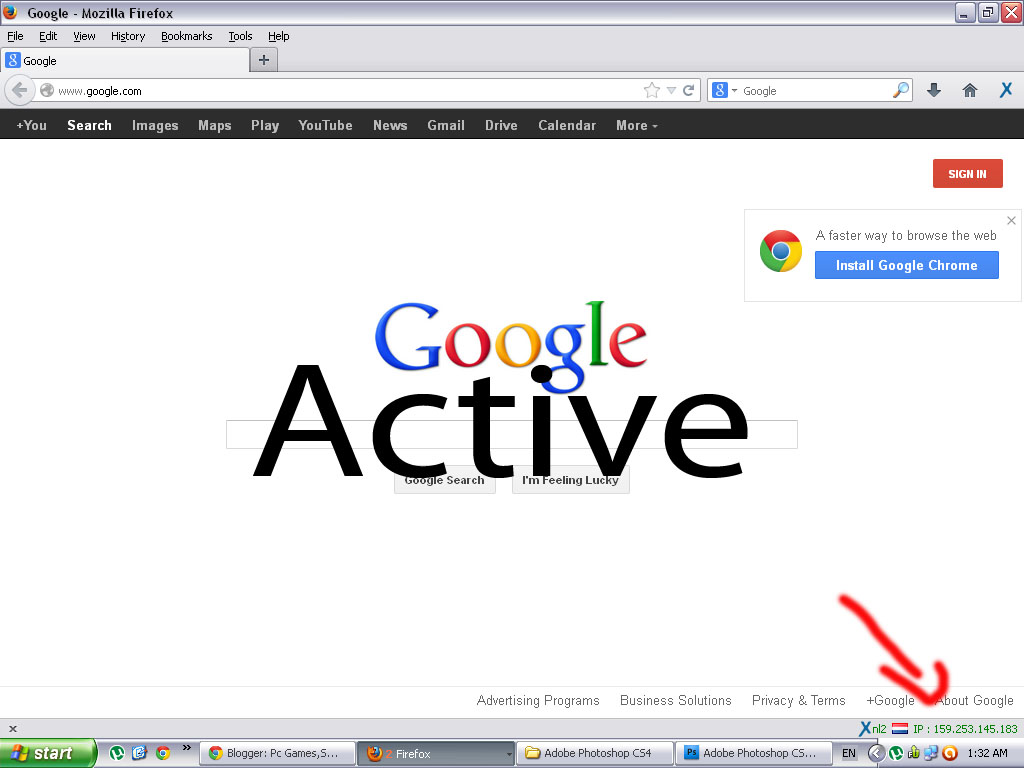
4 - And after restarting you will see a x button just like in the picture below

Easiest way to browse youtube in pakistan,learn computer tips and tricks

5 - Click on this button and a menu will appear.
6 - Click on active
7 - Open youtube.
8 - So no need of any software or proxy site because this add-ons does the same job.


Easiest way to browse youtube in pakistan,learn computer tips and tricks

Easiest way to browse youtube in pakistan,learn computer tips and tricks

Saturday, 20 July 2013

How To Make Screenshots?

1. Open Your Video in Media Player Classic (Supplied with K-Lite Codec Pack)
2. Click on File Menu & Select Option "Save Thumbnail" from the Menu
3. Now Choose the Destination for Thumbnail preview of your video and also
= The Size of Pic in Pixels = (1024 pixels Recommended)
= No.of Thumbs in pic = (4x4 recommended)
However , as per requirement , you can also choose other settings.
4. Now press Save Button
5. Media Player will automatically choose 16 pics from the video , each at same interval of time gap , and will save the thumbnail file at desired location (Choosen in step - 3). Media player automatically writes Name of File , Size of Video , Resolution & Duration of Video on top left Corner.
6. Now you can upload this thumbnail preview and post with you video.

Wednesday, 12 June 2013

Make A Autorun File For any Cd

Make A Autorun File For any Cd ,download free pc games and softwares
Did You Notice, whenever You Insert any game 0r software cd, or simply consider Windows Xp Operating system cd. As soon as You Insert the disk in CD-ROM, It automatically runs the cd.

If you want to make a autorun file for that CD you are ready to burn just read this...

1) You open notepad
2) now you writ: [autorun]
OPEN=INSTALL\Setup_filename.EXE
ICON=INSTALL\Setup_filename.EXE

Now save it but not as a .txt file but as a .inf file.

But remember! The "Setup_filename.EXE" MUST be replaced with the name of the setup file. And you also need to rember that it is not all of the setup files there are called '.exe but some are called '.msi

3) Now burn your CD with the autorun .inf file included.

4) Now set the CD in you CD drive and wait for the autorun to begin or if nothing happens just double-click on the CD drive in "This Computer"

Monday, 10 June 2013

How to remove new folder exe or regsvr exe or autorun inf virus

1. Cut The Supply Line


a. Search for autorun.inf file. It is a read only file so you will have to change it to normal by right clicking the file , selecting the properties and un-check the read only option
b. Open the file in notepad and delete everything and save the file.
c. Now change the file status back to read only mode so that the virus could not get access again..
d. Click start->run and type msconfig and click ok
e. Go to startup tab look for regsvr and uncheck the option click OK.
f. Click on Exit without Restart, cause there are still few things we need to do before we can restart the PC.
g. Now go to control panel -> scheduled tasks, and delete the At1 task listed their.


2. Open The Gates Of Castle

a. Click on start -> run and type gpedit.msc and click Ok..
b. If you are Windows XP Home Edition user you might not have gpedit.msc in that case download and install it from Windows XP Home Edition: gpedit.msc and then follow these steps.
c. Go to users configuration->Administrative templates->system
d. Find “prevent access to registry editing tools” and change the option to disable.
e. Once you do this you have registry access back.


3. Launch The Attack At Heart Of Castle

a. Click on start->run and type regedit and click ok
b. Go to edit->find and start the search for regsvr.exe,
c. Delete all the occurrence of regsvr.exe; remember to take a backup before deleting. KEEP IN MIND regsvr32.exe is not to be deleted. Delete regsvr.exe occurrences only.
d. At one ore two places you will find it after explorer.exe in theses cases only delete the regsvr.exe part and not the whole part. E.g. Shell = “Explorer.exe regsvr.exe” the just delete the regsvr.exe and leave the explorer.exe

4. Seek And Destroy the enemy soldiers, no one should be left behind

a. Click on start->search->for files and folders.
b. Their click all files and folders
c. Type “*.exe” as filename to search for
d. Click on ‘when was it modified ‘ option and select the specify date option
e. Type from date as 1/31/2008 and also type To date as 1/31/2008.
f. Now hit search and wait for all the exe’s to show up.
g. Once search is over select all the exe files and shift+delete the files, caution must be taken so that you don’t delete the legitimate exe file that you have installed on 31st January.
h. Also selecting lot of files together might make your computer unresponsive so delete them in small bunches.
i. Also find and delete regsvr.exe, svchost .exe( notice an extra space between the svchost and .exe)


5. Time For Celebrations

1. Now do a cold reboot (ie press the reboot button instead) and you are done.
I hope this information helps you win your own battle against this virus. Soon all antivirus programs will be able to automatically detect and clean this virus. Also i hope Avast finds a way to solve this issues.
As a side note i have found a little back dog( winpatrol ) that used to work perfectly on my old system. It was not their in my new PC, I have installed it again , as I want to stay ahead by forever closing the supply line of these virus. You can download it form Winpatrol website.

Tuesday, 28 August 2012

You wanna know who used your PC in your absence

Who Used Your Pc In Your Absence,what Did He Do?

first you should go

"start > run >eventvwr.msc"

Events are stored in three log files: Application, Security, and System. These logs can be reviewed and archived.
For our purposes we want the System log. Click on "System" in the left-hand column for a list of events.
Look for a date and time when you weren't home and your computer should have been off.
double click on the eg: info n it will show u the detail.
You can also use this log to see how long someone was on the computer. Just look at the time the computer was turned on and off for that day.

Friday, 10 August 2012

Make your Windows XP talk as you type


Open a text file in notepad and write:

copy from here:-

Dim msg, sapi

msg=InputBox("Enter your text","Talk it")

Set sapi=CreateObject("sapi.spvoice")

sapi.Speak msg

Save the file with a (*.vbs) extension, it will create a VBScript File.

Then after clicking the .vbs file, it will prompt you for a text, input the text and press ok.

Enjoy..

Make firefox 10x faster, 100% working,tested


Here's how tu speed up youre firefox 10x faster

1. Type "about:config" into the address bar and hit enter. Scroll down and look for the following entries:

2. Alter the entries as follows:

Set "network.http.pipelining" to "true"
Set "network.http.proxy.pipelining" to "true"

set "network.http.pipelining.maxrequests" to some number like 30. This means it will make 30 requests at once.

3. Lastly right-click anywhere and select New-> Integer. Name it "nglayout.initialpaint.delay" and set its value to "0". This value is the amount of time the browser waits before it acts on information it recieves.


try this and you can see the difference ...........

Lock Your Computer on Mouse Click


Instead of pressing CTRL+ALT+DEL or windows + L to lock your machine you can create an icon to lock your machine. There are very simple steps by using it you can simply lock your computer
using single mouse click.


Just Follow the simple step >>

1. Right click

an empty spot on the desktop, point to New and click Shortcut.

2. In the Create Shortcut dialog box, type the following in the 'Type the location' of the item text box:

rundll32 user32.dll,LockWorkStation


3. Click Next

4. In "Type a name for this shortcut", type "" (any name as u wish) and Click Finish

5. This will Create a shortcut in your Desktop.

6.Now each time when you want to lock the computer , Just click on this shortcut.

Wednesday, 18 July 2012

How To Find Serial Numbers On Google

if your looking for a serial number for nero (for example) goto google.com and type nero 94FBR and it'll bring it up

this works great in google

HOW DOES THIS WORK?

Quite simple really. 94FBR is part of a Office 2000 Pro cd key that is widely distributed as it bypasses the activation requirements of Office 2K Pro. By searching for the product name and 94fbr, you guarantee two things.

1)The pages that are returned are pages dealing specifically with the product you're wantinga serial for.

2)Because 94FBR is part of a serial number, and only part of a serial number, you guarantee that any page being returned is a serial number list page.


I hope this trick help you finding your ccd keys easily

Enjoy :)

Tuesday, 17 July 2012

How to Rename Multiple File Extensions


Hi, friends a cool trick i want to share so here it is.

You all downloaded some game or app once that was 50 parts big, and you had to rename them all suppose from .bmp to .rar to extract them.

You can easily create a batch file that does that for you.


Open Notepad and just type the following words:


ren *.bmp *.rar


Ofcourse, you have to edit these two extensions to fit the files you want to convert. Save this file as renamer.bat and run it in the directory where you want to rename your downloads. its done.


Its not difficult but let me explain in detail here ok, let suppose you have multiple files of same extention like [*.jpg] in your d: drive and u want to change all these jpg files into bmp by just one command, [instead of doing manually] open notepad from start menu and type this

ren *.jpg *.bmp


ok these words are important so make sure u type them correctly.
Quote:
here *.jpg and *.bmp is the command to change jpg into bmp, if u have other files like MSWORD doc files and u can change their extention into anything u want [jpg, bmp, xls, mpg etc...] I mean anything u type will be the extention.
I hope it clears the concept.

Now back to where we are

save that notepad file in the same directory where ur files are by the name

rename.bat

go to your directory where these files are and now u can see a bat file here just dobble click it and u are done.

Thats it.

Monday, 16 July 2012

how to hack a Software and run the trial program forever


In this post I’ll show you how to hack a Software and run the trial program forever.Most of us are familiar with many softwares that run only for a specified period of time in the trial mode.Once the trial period is expired these softwares stop functioning and demand for a purchase.But there is a way to run the softwares and make them function beyond the trial period.Isn’t this interesting?

Before I tell you how to hack the software and make it run in the trial mode forever, we have to understand the functioning of these softwares.I’ll try to explain this in brief.

When these softwares are installed for the first time, they make an entry into the Windows Registry with the details such as Installed Date and Time, installed path etc.After installation every time you run the software, it compares the current system date and time with the installed date and time.So, with this it can make out whether the trial period is expired or not.

So with this being the case, just manually changing the system date to an earlier date will not solve the problem.For this purpose there is a small Tool known as RunAsDate.

RunAsDate is a small utility that allows you to run a program in the date and time that you specify. This utility doesn’t change the current system date, but it only injects the date/time that you specify into the desired application.

RunAsDate intercepts the kernel API calls that returns the current date and time (GetSystemTime, GetLocalTime, GetSystemTimeAsFileTime), and replaces the current date/time with the date/time that you specify.It works with Windows 2000, XP, 2003 and Vista.

NOTE: FOLLOW THESE TIPS CAREFULLY

You have to follow these tips carefully to successfully hack a software and make it run in it’s trial mode forever.

1. Note down the date and time, when you install the software for the first time.

2. Once the trial period expires, you must always run the software using RunAsDate.

3. After the trial period is expired, do not run the software(program) directly.If you run the software directly even once, this hack may no longer work.

4. It is better and safe to inject the date of the last day in the trial period.

For example, if the trial period expires on jan 30 2009, always inject the date as jan 29 2009 in the RunAsDate.

I hope this helps! Please express your experience and opinions through comments.

Saturday, 14 July 2012

Add any folder to SEND TO option in windows xp Simple trick


Can't find the destination you want, such as a network drive or a commonly-used folder? Fortunately, this list is customizable.

Open My Computer and navigate to
Quote:
C:\Documents and Settings[username]SendTo folder
where C is the drive on which Windows is installed. Inside the SendTo folder, select File, New, Shortcut and follow along with the wizard: Click Browse, select the shortcut you want to add, click OK, click Next, type a name for the shortcut then click Finish.

"Send to" folder is hidden by default. So unlock the hidden files from FOLDER OPTIONS in control panel.

Alternatively, you could copy and paste (or drag and drop) the desired shortcut into the Send To window. Either way, the next time you select the Send To command, this new destination appears in the list.

Friday, 13 July 2012

Control Panel on your desktop


 On The Desktop, Right Click Your Mouse Then Choose "New | Folder". Name The Folder As
Code:
ControlPanel.{21EC2020-3AEA-1069-A2DD-08002B30309D}
And Now You Can Access The Control Panel More Faster Then Before.

Saturday, 7 July 2012

how to lock a folder without using any software in xp


*Copy the following codes (Marked in blue colour):

cls
@ECHO OFF
title Folder Locker
if EXIST "Control Panel.{21EC2020-3AEA-1069-A2DD-08002B30309D}" goto UNLOCK
if NOT EXIST Locker goto MDLOCKER
:CONFIRM
echo Are you sure u want to Lock the folder(Y/N)
set/p "cho=>"
if %cho%==Y goto LOCK
if %cho%==y goto LOCK
if %cho%==n goto END
if %cho%==N goto END
echo Invalid choice.
goto CONFIRM
:LOCK
ren Locker "Control Panel.{21EC2020-3AEA-1069-A2DD-08002B30309D}"
attrib +h +s "Control Panel.{21EC2020-3AEA-1069-A2DD-08002B30309D}"
echo Folder locked
goto End
:UNLOCK
echo Enter password to Unlock folder
set/p "pass=>"
if NOT %pass%==type your password here goto FAIL
attrib -h -s "Control Panel.{21EC2020-3AEA-1069-A2DD-08002B30309D}"
ren "Control Panel.{21EC2020-3AEA-1069-A2DD-08002B30309D}" Locker
echo Folder Unlocked successfully
goto End
:FAIL
echo Invalid password
goto end
:MDLOCKER
md Locker
echo Locker created successfully
goto End
:End


* Now paste it in notepad.
* Change the "type your password here" with your password (Marked as bold in the above posted matter).
* Save it as batch file(with extension .bat).Any name will do.
* Now you see a batch file. Double click it to create a folder locker.
* A new folder named Locker would be formed at the same location.
* Now brings all the files you want to hide in the locker folder.
* Now double click the batch file to lock the folder namely Locker.
* If you want to unlock your files,double click the batch file again and you would be prompted for password.Enter the password and enjoy access to the folder.

Monday, 2 July 2012

How to Check Your Anti-Virus Software Working Properly Or Not


This article is best in checking out whether your antivirus software is running at its best or not. It was not known to many that how to check the antivirus software they are using is working properly or not. Please read the article for the details.

1:-Click Start --> Open Notepad -->

2:-Copy the code exactly in the notepad :

X5O!P%@AP[4\PZX54(P^)7CC)7}$EICAR-STANDARD-ANTIVIRUS-TEST-FILE!$H+H*

3:-Now Save it with the name fakevirus.exe in any of your folder/drives.

4:-If this file got deleted immediately...then it means that your antivirus is working properly and updated !!

5:-If this doesnt happens and you see the saved file in that folder do right click the file and select scan with your installed antivirus and if the scan shows the file then it means your antivirus is working properly but not updated with a new version, as best antivirus softwares detect any virus (at the same second when you save the same in your system)without your effort of going to specified folder and scanning the folder.

6:-If it doesnt shows any kind of threats then you need to change your antivirus software immediately with some good one with the new version.

Saturday, 30 June 2012

How to Change Default Wallpaper Directory Folder


We can easily change our desktop wallpaper by right-clicking on desktop, click “Properties, open “Desktop” tab, pick one of the provided wallpapers within the list and hit the apply button. However, when we want to change the desktop wallpaper with another one that is located within another folder, you’ll have to click the browse button to go to the folder and pick the wallpaper.

If you keep your favorite wallpapers in a separate folder and most of the time you rotate the wallpapers on the desktop, why don’t you just make the folder to be your default wallpaper directory? In this way, you don’t need to click the browse button every time you want to change the desktop wallpaper from Deskop Properties window.

How to change the default wallpaper directory

Open registry editor and go to:
HKEY_LOCAL_MACHINE\SOFTWARE\Microsoft\Windows\Curr entVersion

After you find the key, look the right pane and find the string value “WallPaperDir”.

The default value data of it is:
%SystemRoot%\Web\Wallpaper

This value data has to be changed. Double-click it and enter the location of your wallpaper directory or folder.

Mine is located in H:\Visual Styles Collection\Wallpaper\Sweet, so I change the default value data with the location.

That’s it. After you change it, you can close the registry editor window and open the Desktop Properties.

You’ll see that all of the wallpapers within the list are the ones that are located in the folder you set in the Registry editor.

How To Block Websites Without Using Any Software


Guys sometimes we want to restrict access to some particular website
from our PC but we dont know how to do it without using some software
for it.

Here i m sharing with you a method to do it without using any software......

1] Browse C:\WINDOWS\system32\drivers\etc

2] Find the file named "HOSTS"

3] Open it in notepad

4] Under "127.0.0.1 localhost" Add 127.0.0.2
Code:
www.site-name-you-want-to-block.com
, and that site will no longer be accessable.
5] Done !

Tuesday, 26 June 2012

Hide your Hard Disk Drives


When you need to secure your important data from other users, there are so many choice over there like folder protect,hide folder and much more. But imagine if your data size is more than 100 GB then it is not easy to burn it on CD or protect it. So don't worry friends, I am posting a trick by using this trick you can save your full drive by hiding it from other users. You can hide your drives without any Registry Edit.


1. Log on as Administrator

2. Click on Start button then click on Run > Type CMD


3.Now type diskpart at the command prompt and wait for 5 seconds to appear diskpart> utility.


4.To show the list of volume, type list volume

command after the diskpart> prompt, this command will show you all system drives detail


5.Now Select the volume that you want to hide for example

If you want to hide F drive then first type select volume 2 (in this case) and hit enter button.


6.After selecting volume, type Remove letter F (in this case) to hide F drive.


7. DONE. Now you hide your drive successfully..to verify go to My Computer
and check drives

8.But next time, when you want to unhide the F drive, just type assign letter F command after loading volume 2.
 

Monday, 25 June 2012

Hide & Secure Data in an Invisible Folder


1) Create a New Folder & rename it.


2) Press & Hold " ALT + SHIFT " & type 0 1 6 0 in the NUM Pad.

OR

Press & Hold " ALT " & type 2 5 5 in the NUM Pad.

Note: NUM Lock Key must be "OFF"

3) You will see a Folder without name.
 

4) Go to the " Properties " of the Folder.


5) Click on the " Customize " Tab & go to " Change Icon " option.


6) Search for the Blank Icon in the Icon List & select it.


7) Click on " OK " & " APPLY ". 


8) You can see the HiddenFolder highlighted when we drag the Mouse over it.

9) Drag & Drop your Files & Folders into this HiddenFolder.

Related Posts Plugin for WordPress, Blogger...